Merchant Settings
You can handle the settings for following functionalities:
Merchant Settings > Merchant Profile
Here you can access your details which registered with us and also you can update the same.
How to access page?
After login you need to click on Merchant Profile section under the Merchant Settings tab in the left navigation bar of Merchant’s back office.
Result details
It contains the below details:
- Basic Details
- Address Details
- Contact Details
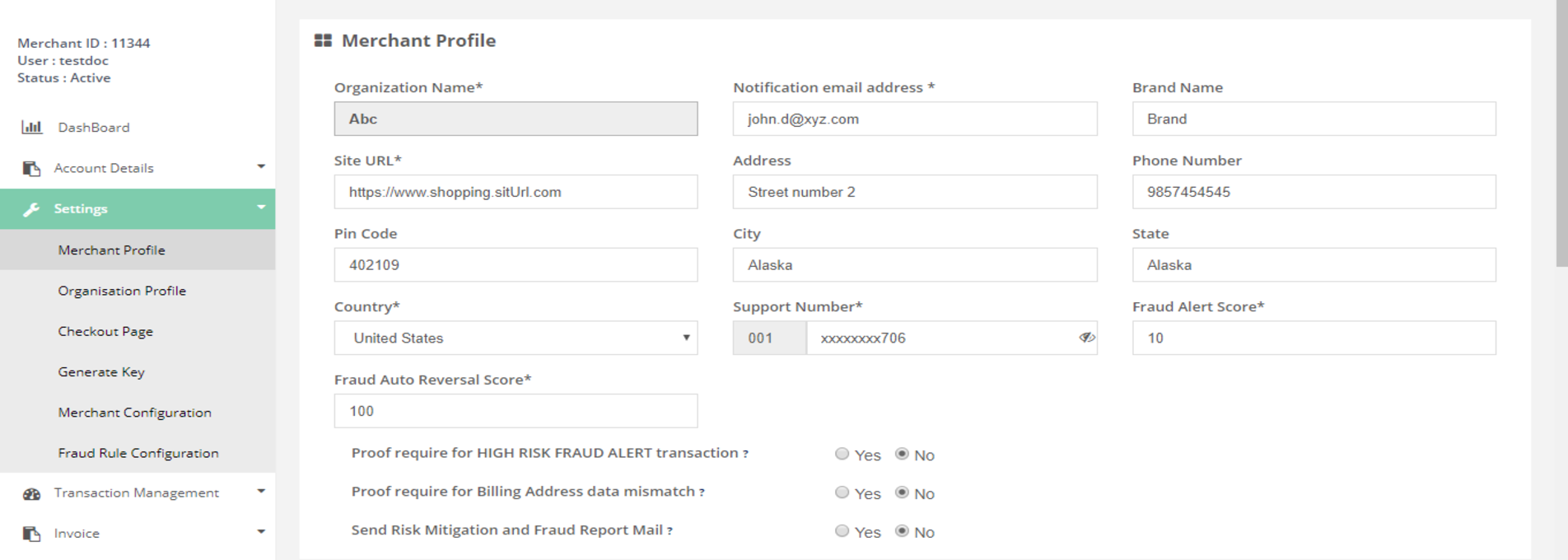
Merchant Profile Page
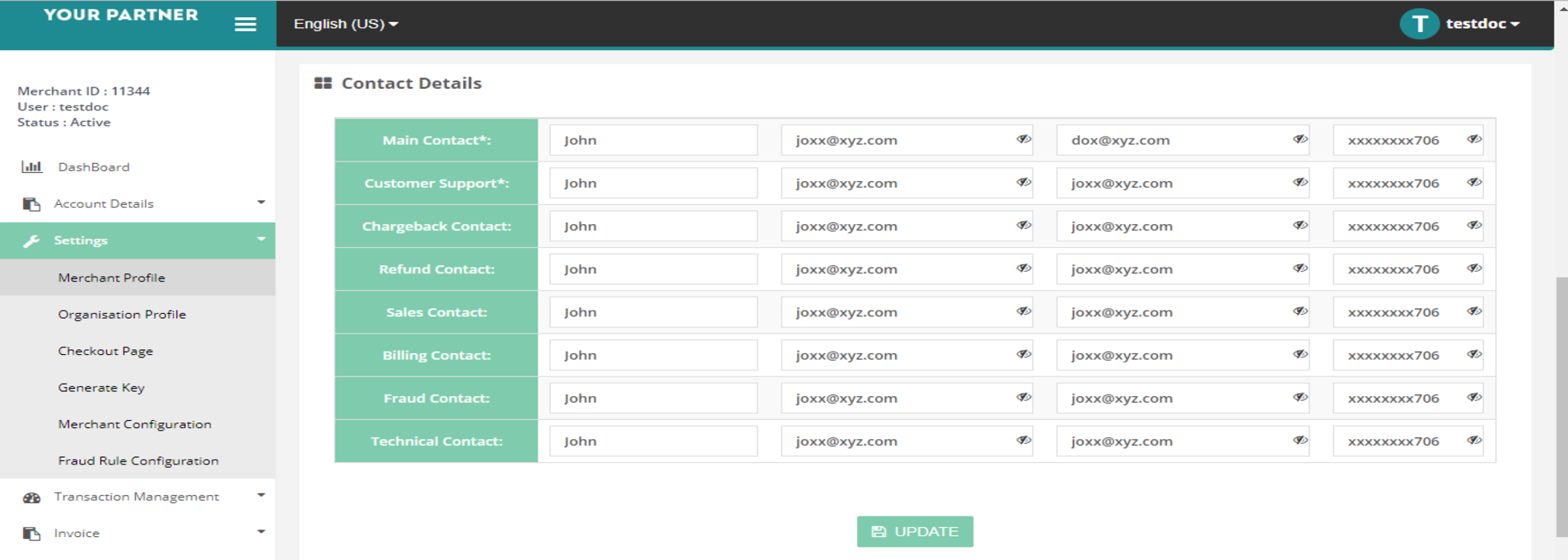
Merchant Profile Page
Merchant Settings > Organization Profile
In this page you can retrieve the organization profile by selecting the company type. You can also update the information for same.
How to access page?
After login you need to click on Organisation Profile section under Merchant Settings tab in the left navigation bar of Merchant’s back office.
Result details
Organization profile consists of organization information by their company type.
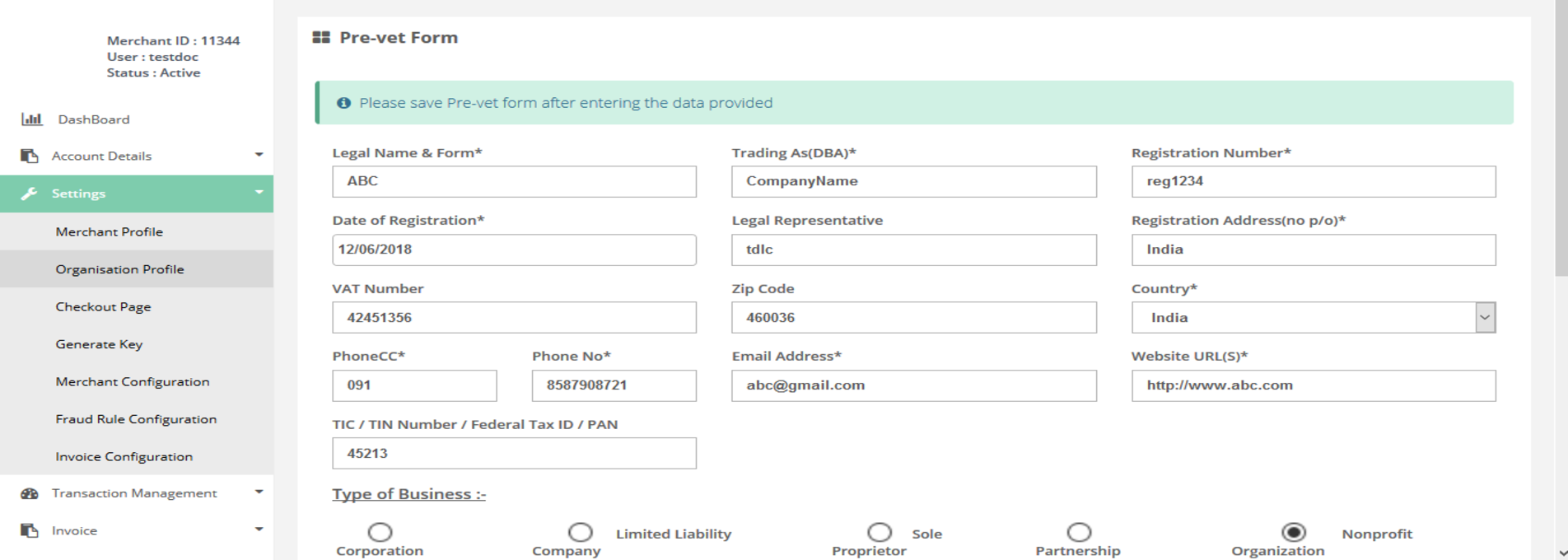
Organization profile
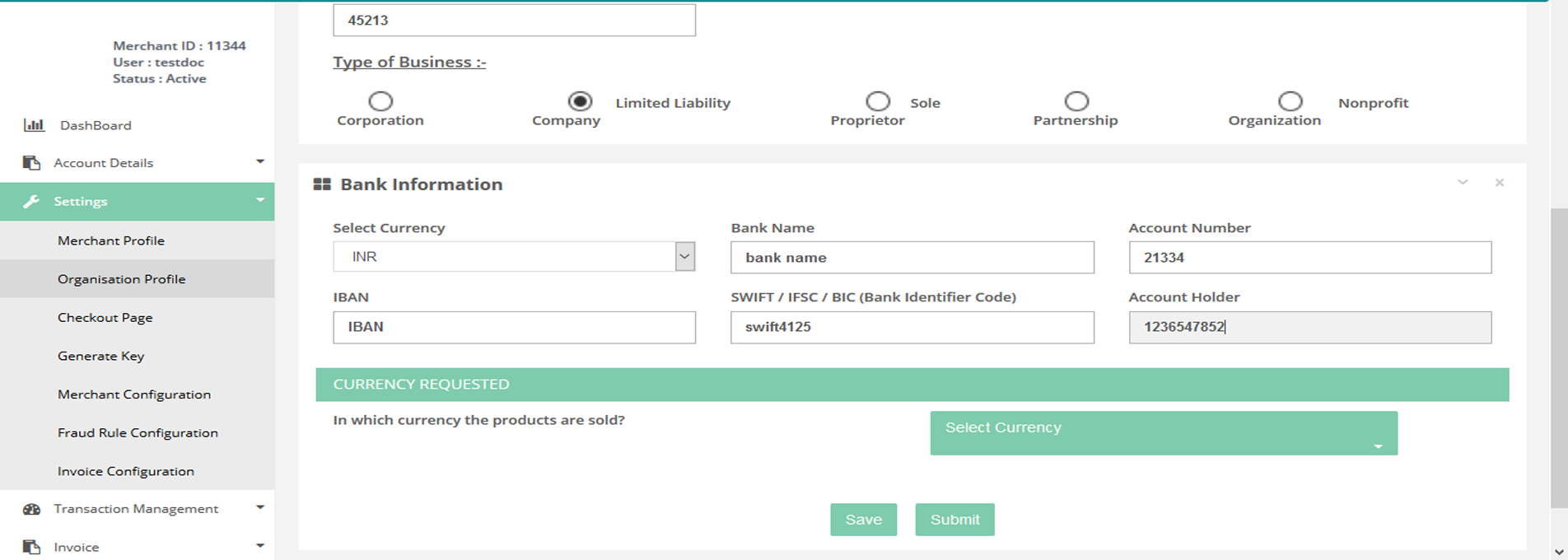
Organization profile
Merchant Settings > Generate Key
For secure transaction through Standard and Direct kit Secret key is very important. Without this key you cannot connect with the Gateway Service.
How to access pages?
After login you need to click on Generate Key section under Merchant Settings tab in the left navigation bar of Merchant’s back office.
Result details
In this section we provide current secret key. For generating a new key you need to click on the “Generate Key” button. Then you will receive a new key though which you can place the transaction.
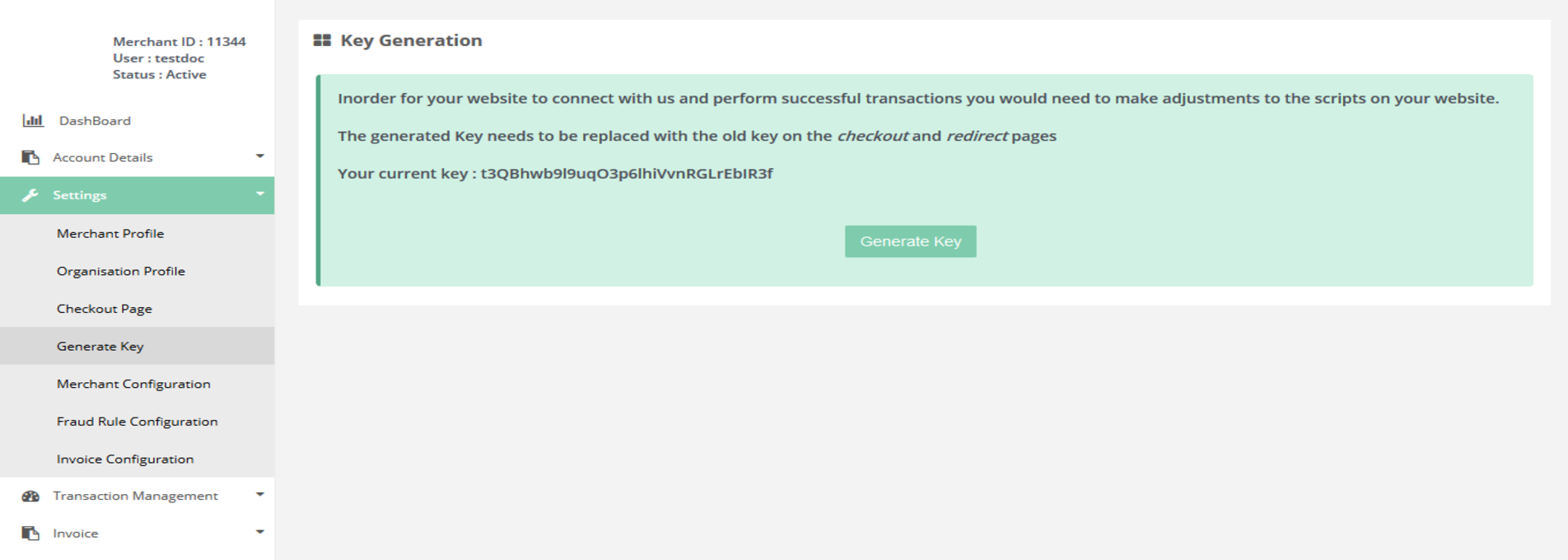
Generate key page
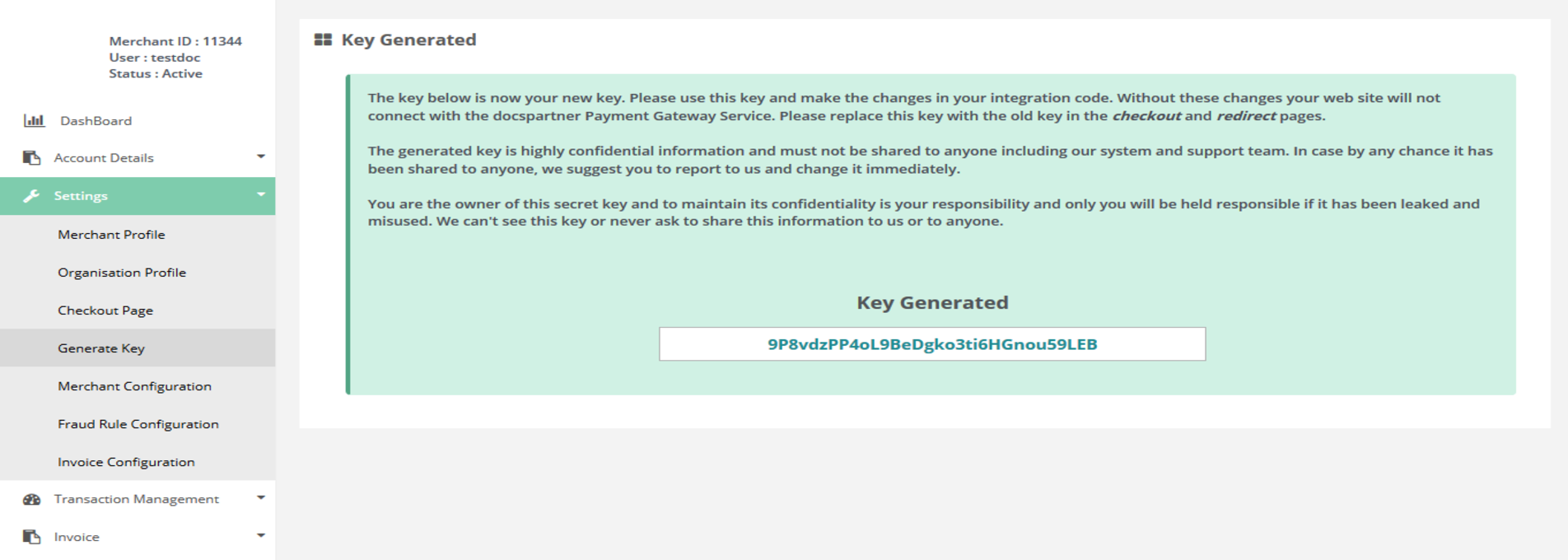
Generate key page
Merchant Settings > Merchant Configuration
In this page you can retrieve your configuration information as per Terminal ID selection.
How to access pages?
After login you need to click on Merchant Configuration section under Merchant Settings tab in the left navigation bar of Merchant’s back office.
Search criteria
You can search the member config details by selecting the Terminal ID
Result details
After you chose a terminal, you can access the below configuration details.
- Profile Details
- Charges Details
- Account Details
- Account Limit
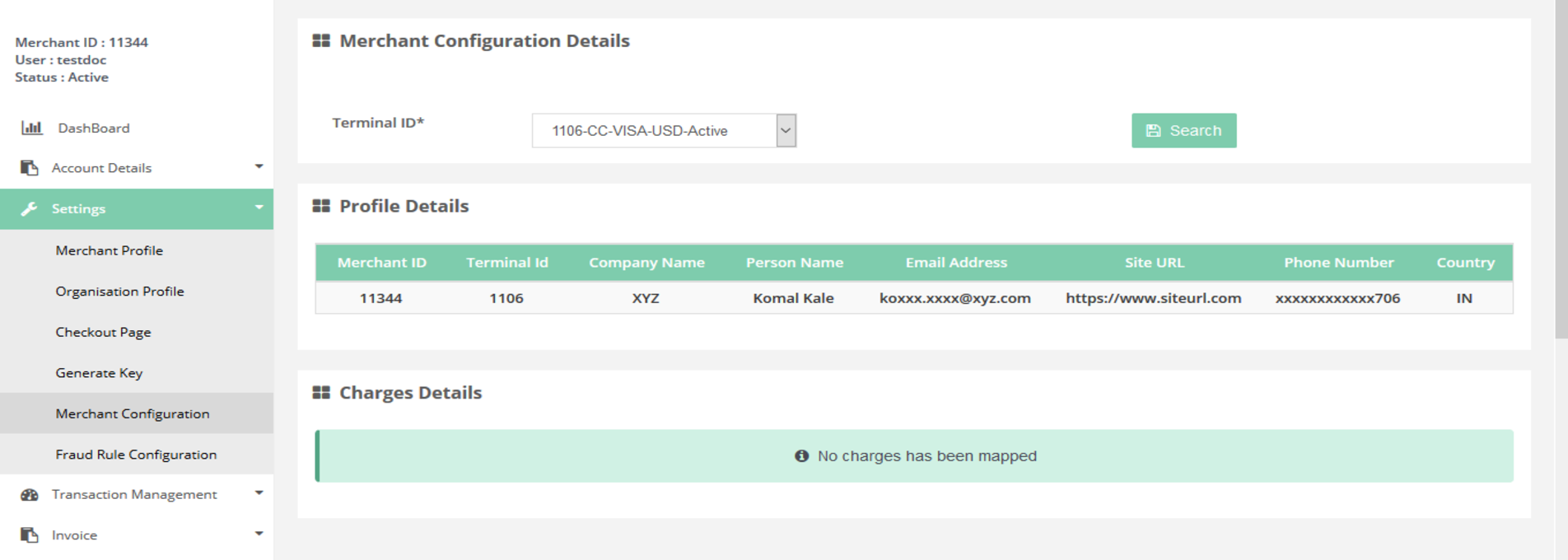
Left Navigation bar
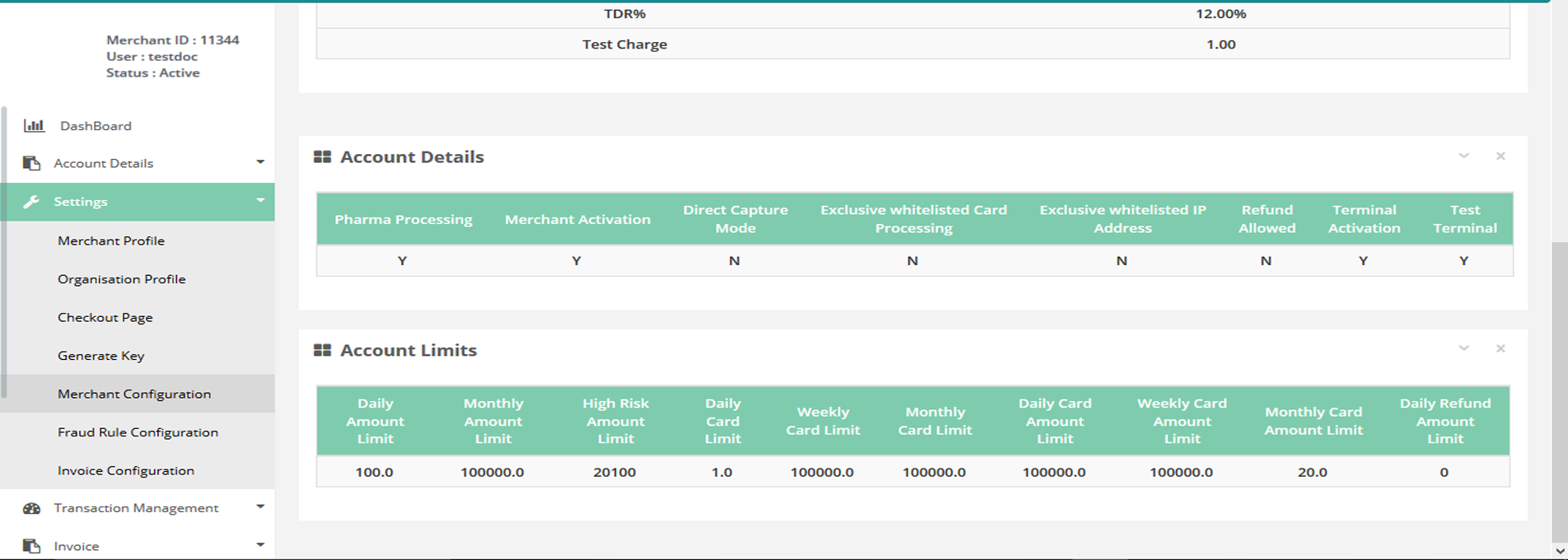
Member Config Details Search Filter
Merchant Settings > Fraud Rule Configuration
In this page you can access the fraud rule configuration.
How to access pages?
After login you need to click on "Fraud Rule Configuration" section under "Merchant Settings".
Result details
For setting and updating the score and status you need to select the check boxes situated at left side and click on "Update Selected" button.
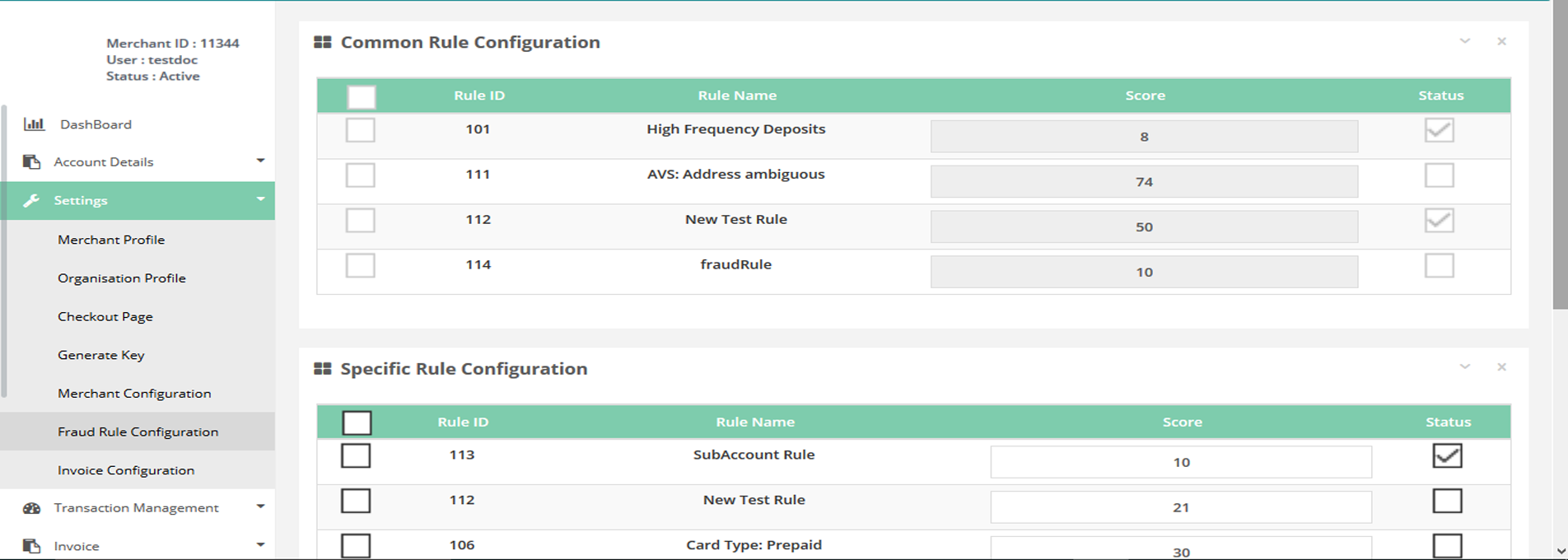
Fraud Rule Configuration
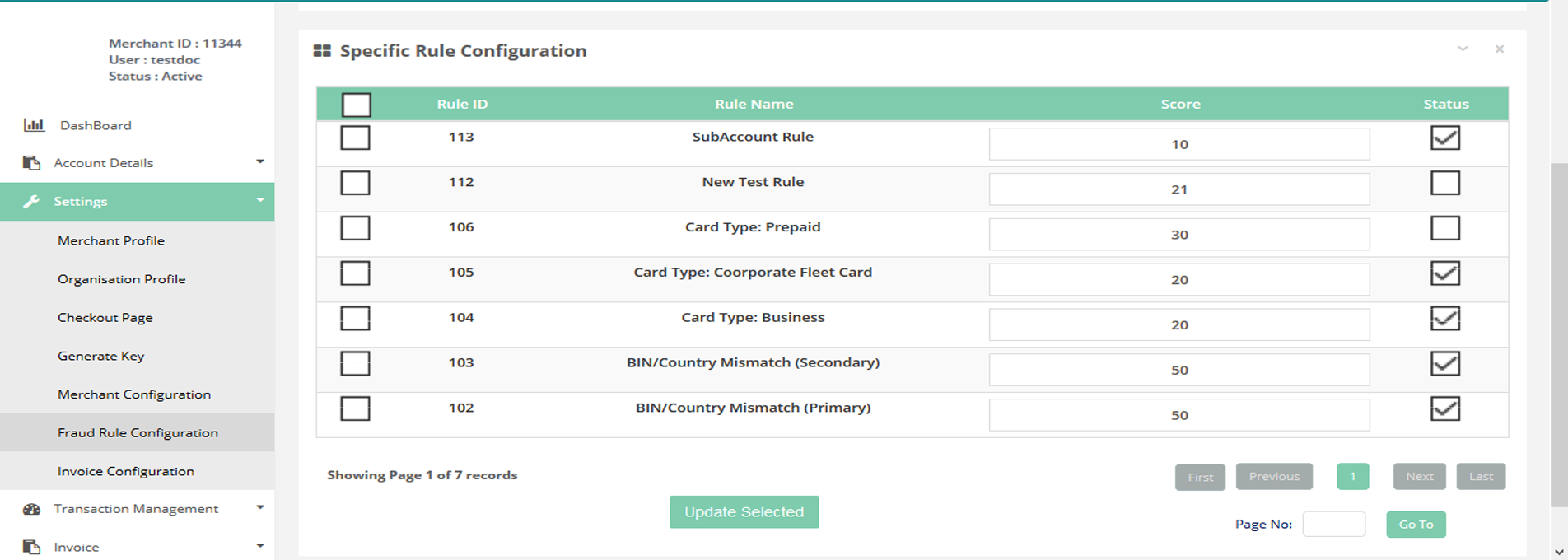
Fraud Rule Configuration
Blacklist Details > Blocked Country
Here you can view the Blocked Country Details.
How to access page?
After login you need to click on Blacklist Details section under the Settings tab in the left navigation bar of Merchant’s back office. On the resulting page click on "Blocked Country" button.
Search criteria
You can search the Blocked Country details by selecting :
- Merchant ID *
- Country Name
Result details
The search filter gives below details:
- Country Name
- Account ID
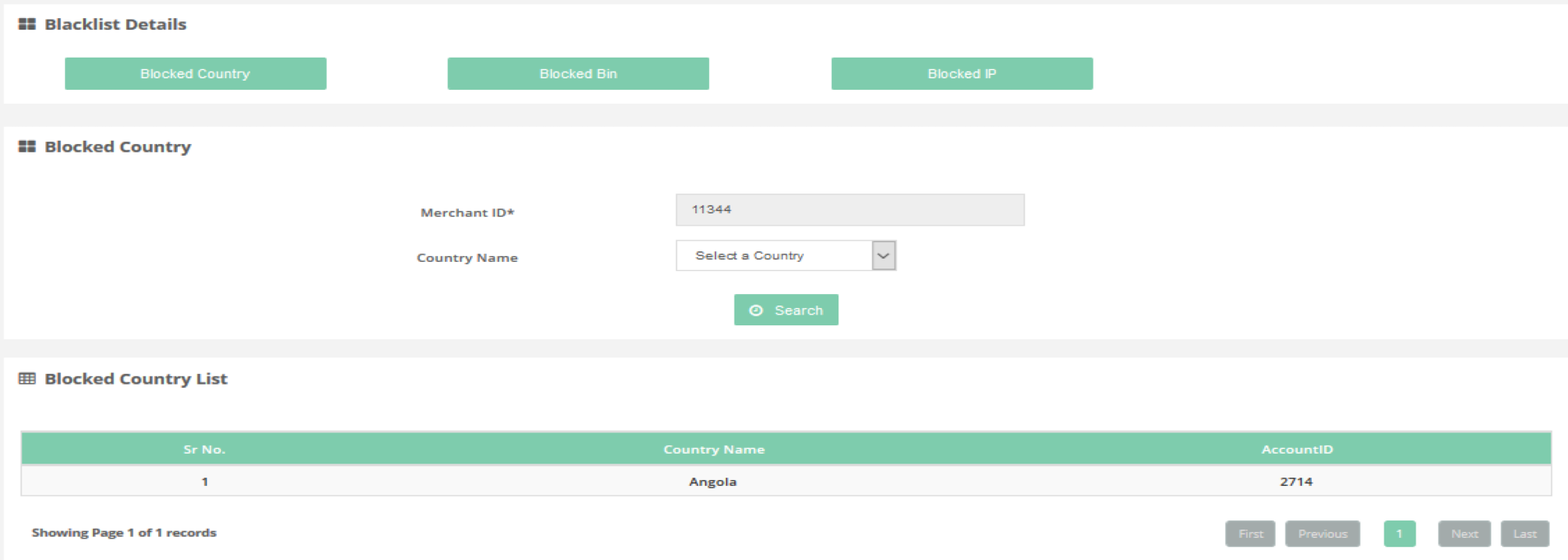
Blocked Country
Blacklist Details > Blocked Bin
Here you can view the Blocked BIN Details.
How to access page?
After login you need to click on Blacklist Details section under the Settings tab in the left navigation bar of Merchant’s back office. On the resulting page click on Blocked Bin button.
Search criteria
You can search the Blocked Bin details by selecting :
- Merchant ID*
- Start Bin
- End Bin
Result details
The search filter gives below details:
- Start Bin
- End Bin
- Account ID
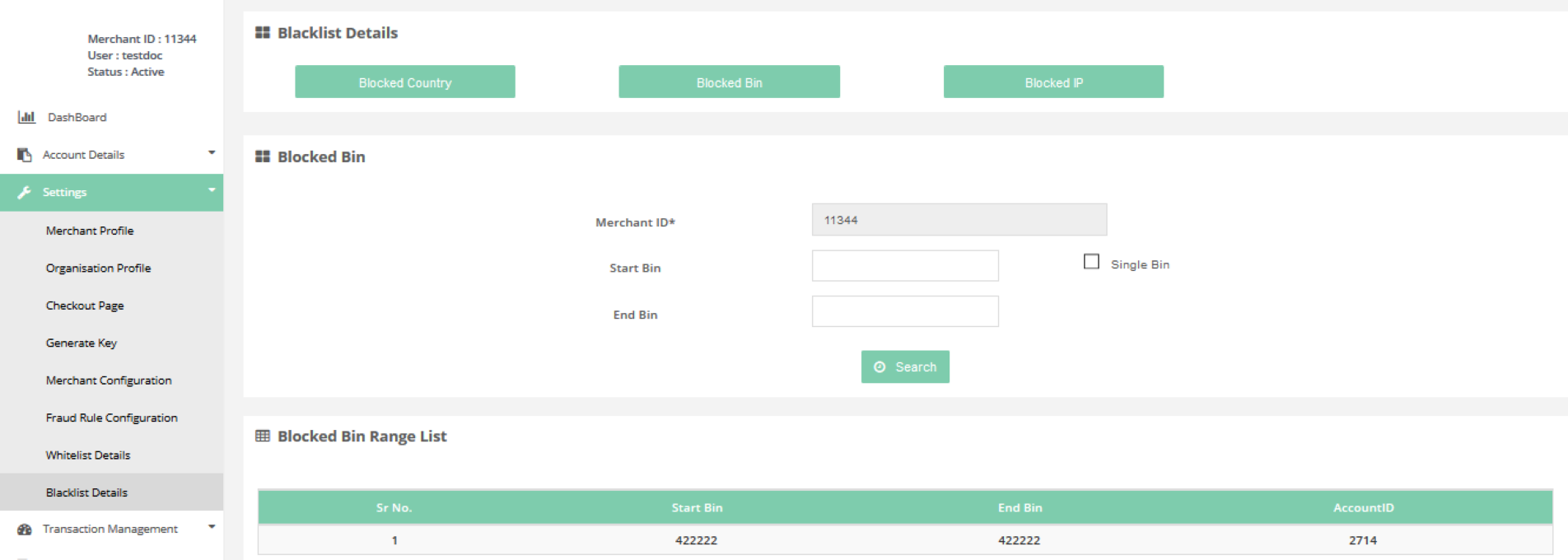
Blocked Bin
Blacklist Details > Blocked IP
Here you can view the Blocked IP Details.
How to access pages?
After login you need to click on Blacklist Details section under the Settings tab in the left navigation bar of Merchant’s back office. On the resulting page click on Blocked IP button.
Search criteria
You can search the Blocked IP details by selecting:
- Merchant ID *
- Select IP Type
- IP Address
Result details
The search filter gives below details:
- IP
- Merchant ID
- Selected IP Version

Blocked IP
Whitelist Details > Whitelisted Cards
Here you can view the Whitelisted cards Details .
How to access page?
After login you need to click on Whitelist Details section under the Settings tab in the left navigation bar of Merchant’s back office. On the resulting page click on "Whitelisted Cards" button.
Search criteria
You can search the whitelisted card details by selecting :
- Merchant ID *
- First Six
- Last Four
- Email Address
- Card Holder Name
- IP Address
Result details
The search filter gives below details:
- First Six
- Last Four
- Email Address
- Name
- IP Address
- AccountID
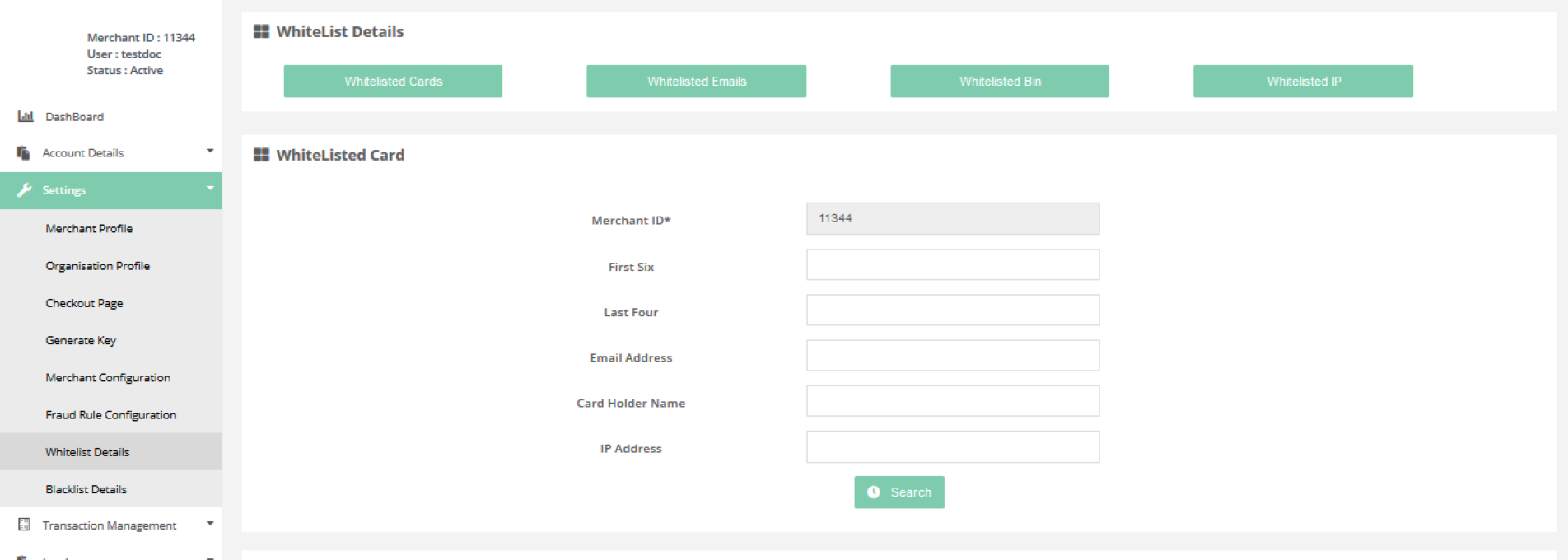
Whitelisted Cards
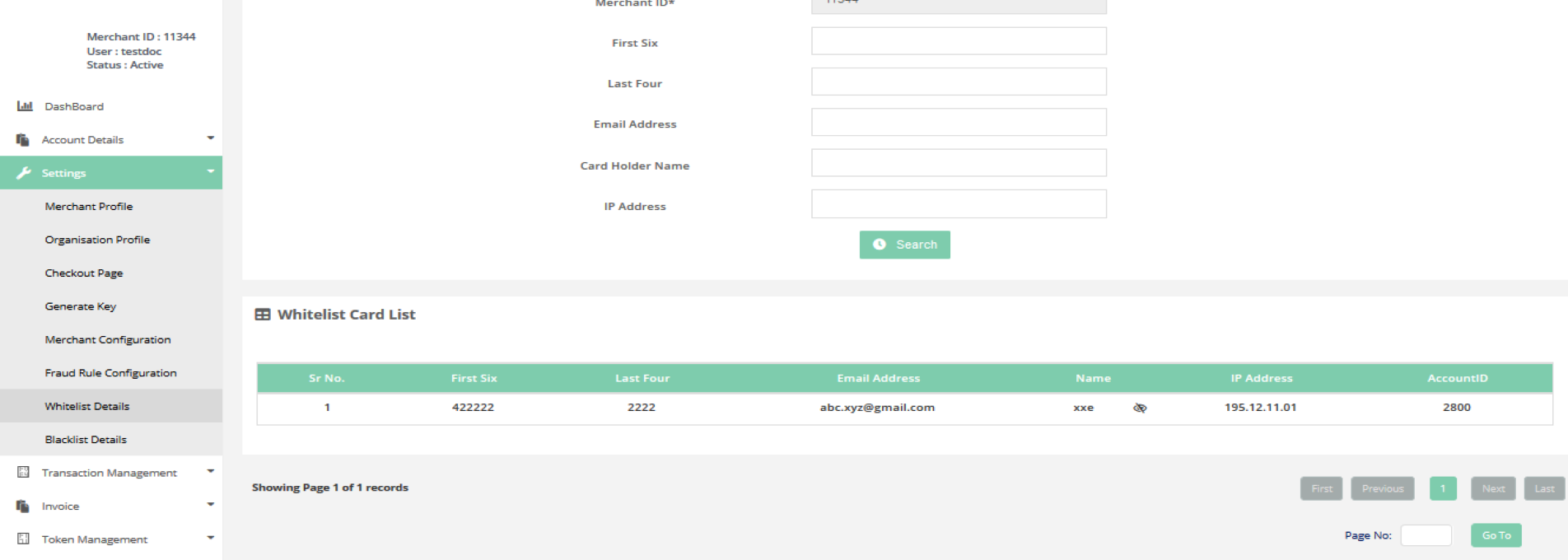
Whitelisted Cards Result
Whitelist Details > Whitelisted Email
Here you can view the Whitelisted Email Details.
How to access page?
After login you need to click on Whitelist Details section under the Settings tab in the left navigation bar of Merchant’s back office. On the resulting page click on "Whitelisted Email" button.
Search criteria
You can search the Whitelisted Email details by selecting :
- Merchant ID*
- Email Address
- Card Holder Name
- IP Address
Result details
The search filter gives below details:
- Email Address
- Name
- IP Address
- Account ID
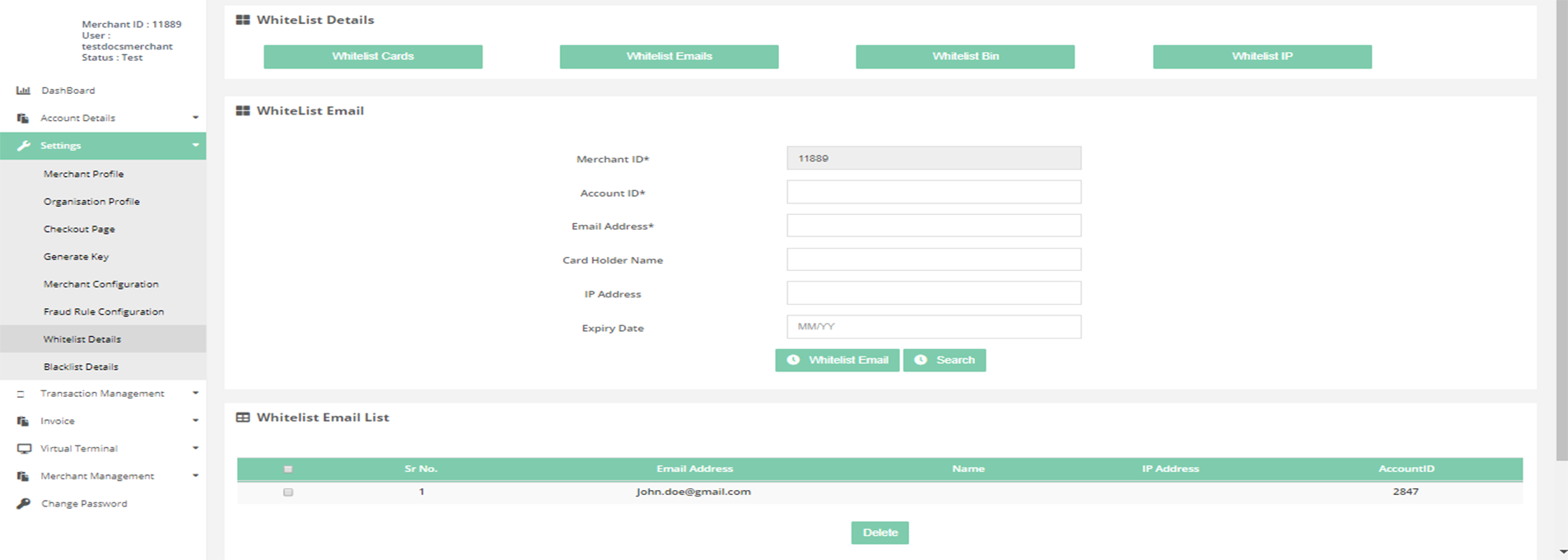
Whitelisted Email
Whitelist Details > Whitelisted Bin
Here you can view the Whitelisted BIN Details.
How to access pages?
After login you need to click on Whitelist Details section under the Settings tab in the left navigation bar of Merchant’s back office. On the resulting page click on "Whitelisted Bin" button.
Search criteria
You can search the Whitelisted Bin details by selecting:
- Merchant ID *
- Start Bin
- End Bin
Result details
The search filter gives below details:
- Start Bin
- End Bin
- AccountID

Whitelisted Bin
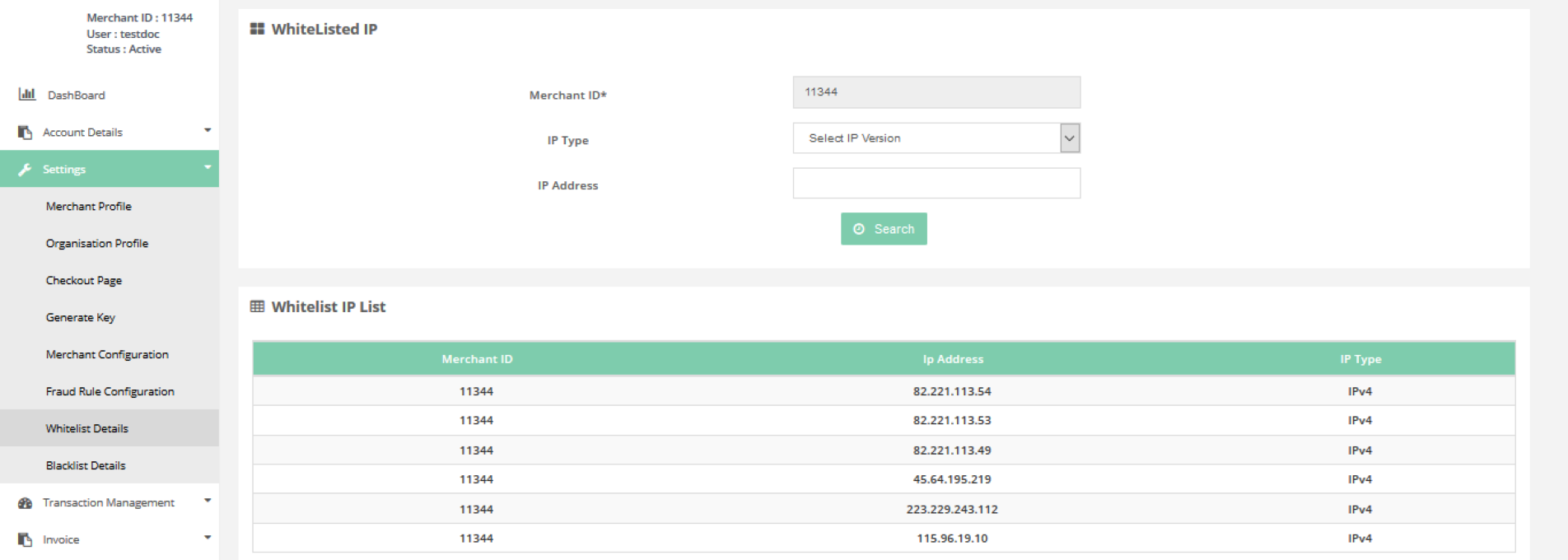
Whitelist Details > Whitelisted IP
Here you can view the Whitelisted IP Details.
How to access pages?
After login you need to click on Whitelist Details section under the Settings tab in the left navigation bar of Merchant’s back office. On the resulting page click on "Whitelisted IP" button.
Search criteria
You can search the Whitelisted IP details by selecting:
- Merchant ID *
- IP Type
- IP Address
Result details
The search filter gives below details:
- Merchant ID
- IP Type
- IP Address